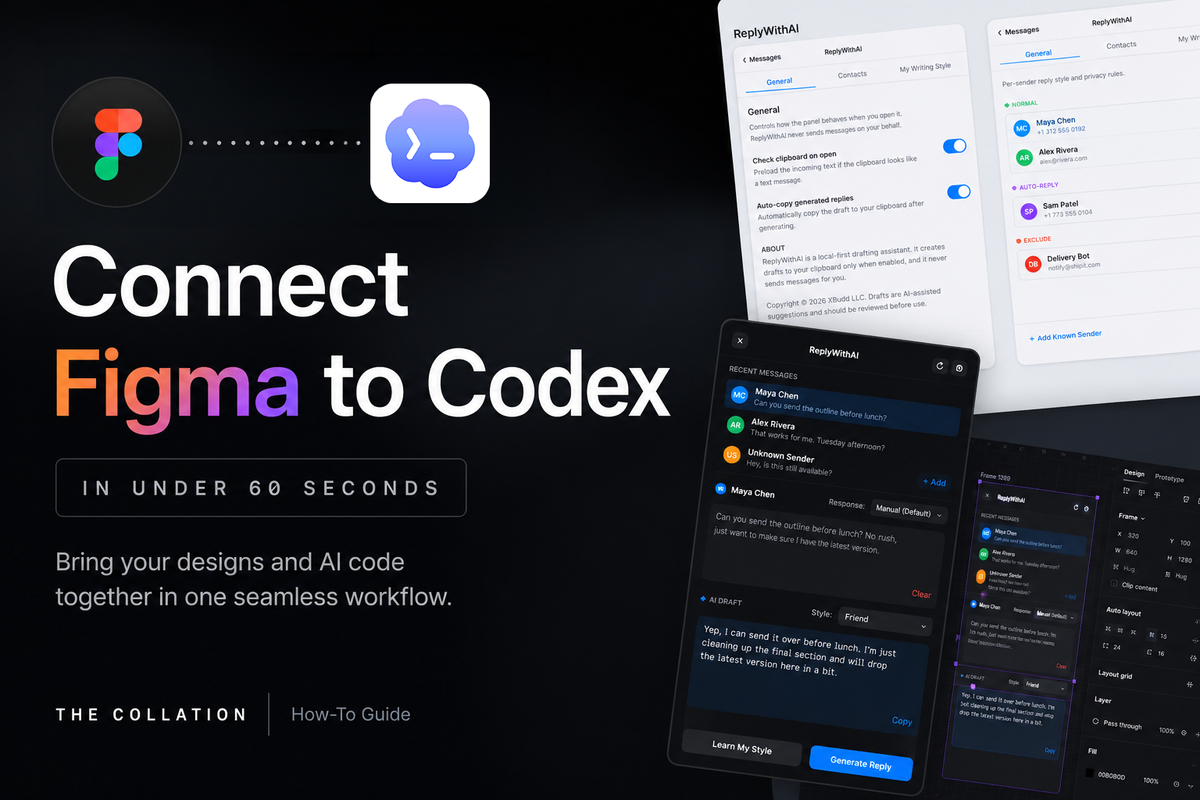
Connect Figma to Codex in Under 60 Seconds (And Stop Rebuilding Your UIs From Scratch)
If you’re using AI to build apps, there’s a good chance you’re still designing them the old way and wasting your usage limit / credits trying to prefect the design. Here’s a workflow I’ve been using recently that has saved me a surprising amount of time (and credits).

Like many, I've been enjoying building an endless array of vibecoded apps, services, sites, sharables, and beyond.
Also like many, I’ve found the resulting UI to leave much to be desired. Purple gradients. Cream backgrounds. Serif fonts. You know the look.
Turns out the answer was at my fingertips the entire time:
Figma
I started my career in UX Design. I have a BFA. And yet somehow I didn't put 2 and 2 together. I've been siloing AI as Designer / Design Collaborator from the Design Tool this whole time. Please don't make my mistake.
The second I connected the two it was magic: my designs now appeared live in Figma. I could prompt and see precise changes take shape and all the while I could be in the file with the AI editing and doing what I love: designing.
Figma + AI Coders = bliss
Fortunately it is super simple to set up - via connectors or MCPs. Here's how to do so with OpenAI's Codex:
Watch the tutorial or read on below
Tip: Using Other Popular AI Coding Tools?
If you're looking to configure Figma for another AI tool of choice (like Claude Code or Cursor), be sure to check out Figma's official guidance:

Tutorial: Connecting Figma and Codex
Step 1: Open the Codex Plugins panel
Inside Codex, open the Plugins panel. If you haven’t explored it yet, this is where Codex can connect to external tools and services through plugins or MCP servers (Model Context Protocol) - think of it as a way for your AI coder of choice to "talk to" a given tool/service, like Figma and many others.
Search for Figma.
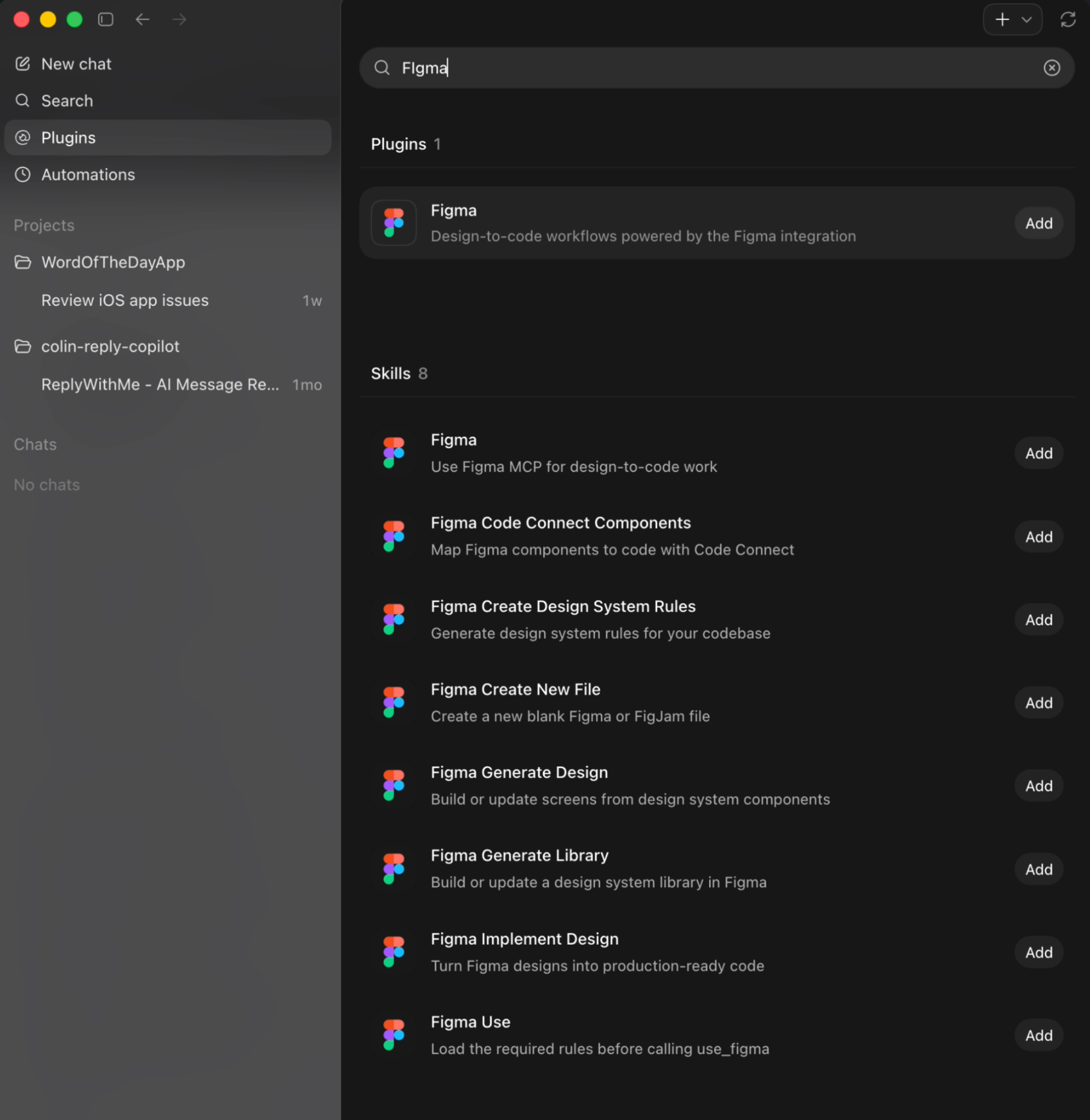
You’ll see the official Figma connector.
Click Connect, sign in to your Figma account, and authorize access. The whole process takes less than a minute.
Step 2: Give Codex a design to work with or start from scratch
Once connected, head back to your project in Codex.
Tell Codex to create the wireframes for your vibecoded 'thing' and watch what happens in Figma. You can also take an existing design you have in Figma and ask Codex to create the live version.
You almost won't believe what happens next.
In my case, I already had a small applet I was working on: an AI text responder I’d built entirely through vibecoding.
There wasn’t a single Figma file behind it. No mockups. No wireframes. Just a working application and some rough UX sketches I had fed into Codex at the start. Did I mention rough?
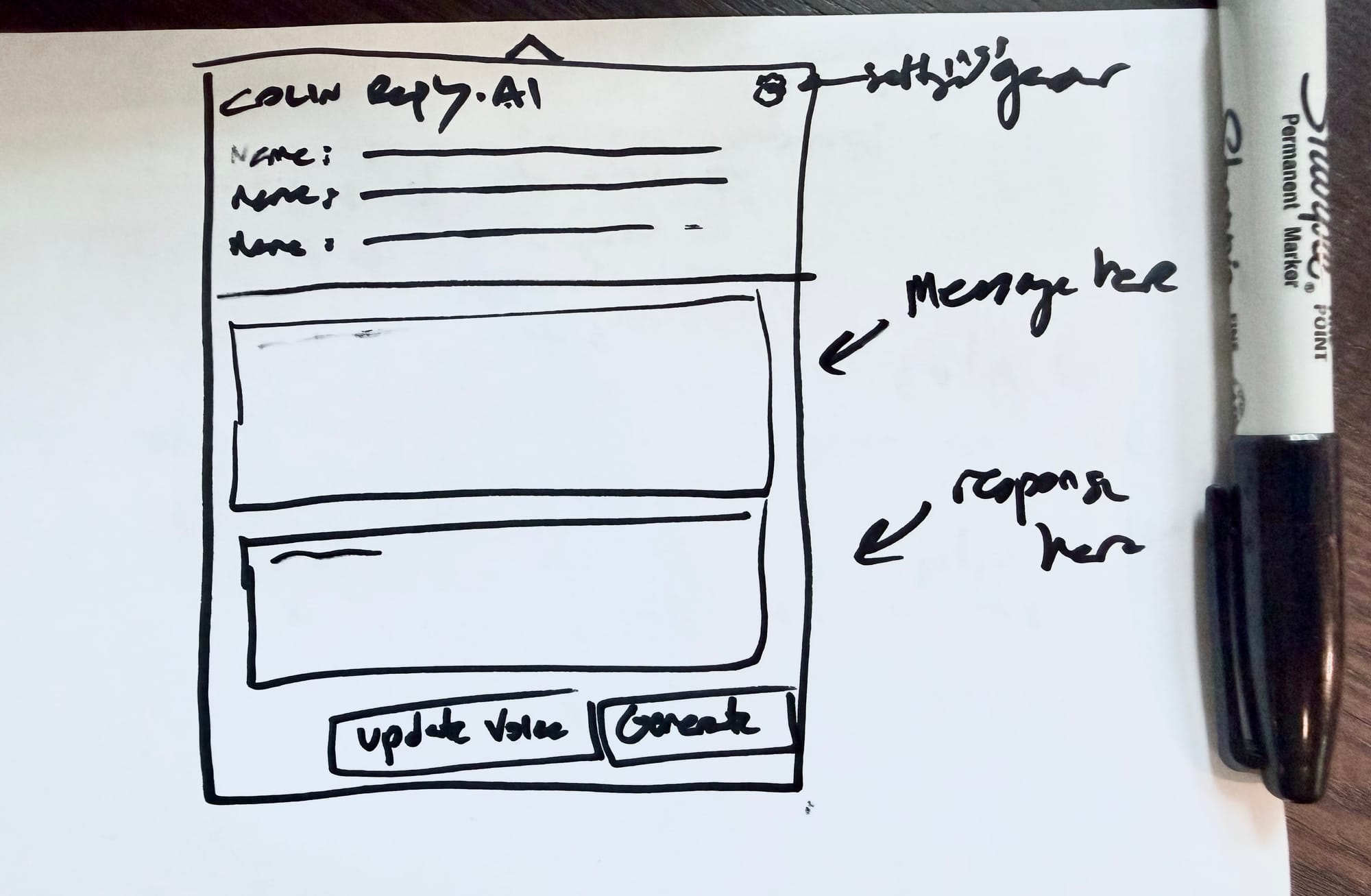
That made it the perfect test.
I simply asked Codex to create wireframes for the application and - without needing to do any work in Figma - they appear fully rendered.
You read that right: an actual editable Figma file.
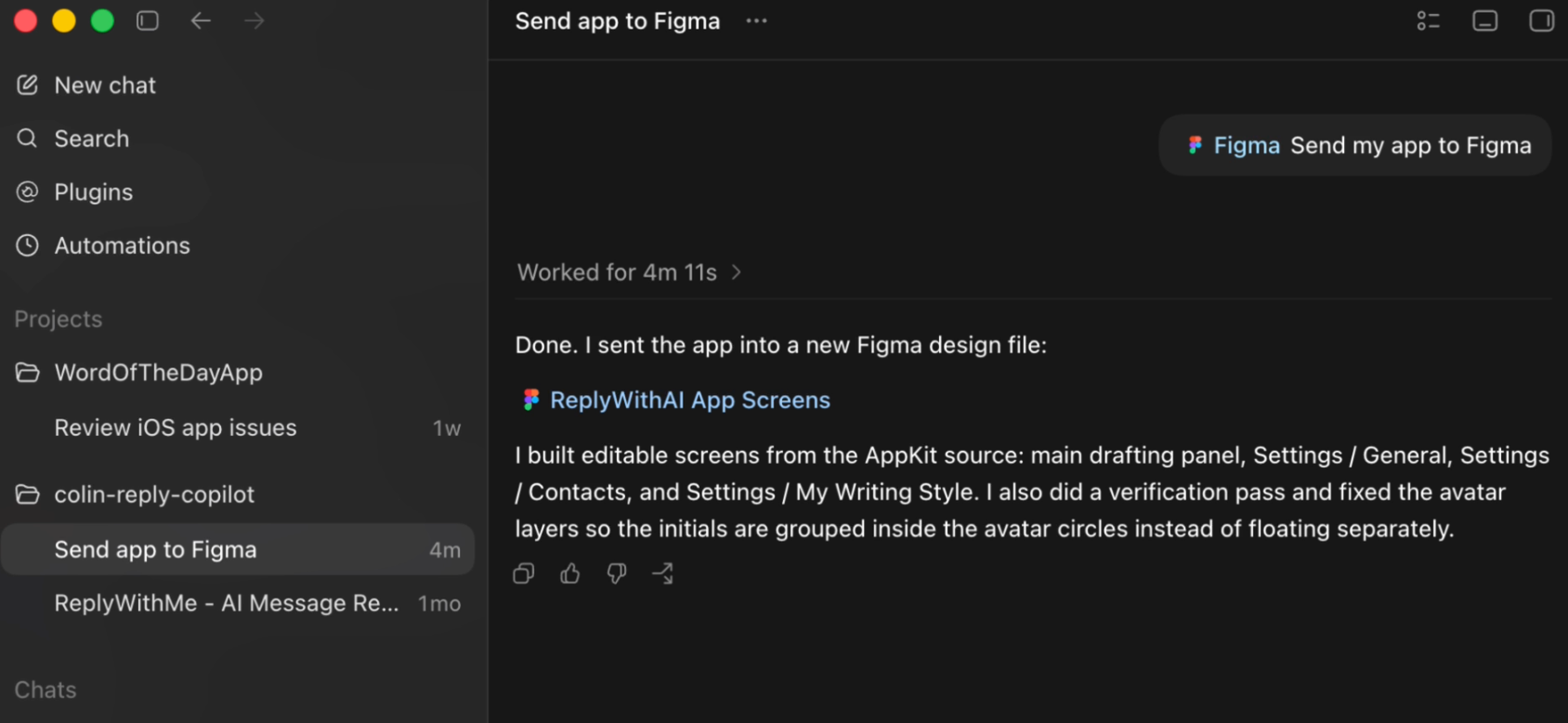
Layers. Frames. Components. Everything you’d expect if you’d designed it yourself from scratch.
Step 3: Start designing...in either app
You're now able to make adjustments directly to the Figma file and have those changes take effect in your vibecoded project. Similarly the other way around.
It's beautifully bidirectional and, best of all, visual.
This is where it really clicked for me: Instead of prompting and prompting, hoping the next iteration looked better, I was back in an environment I already knew well.
I could adjust spacing, change copy, adjust hierarchy all with Figma.
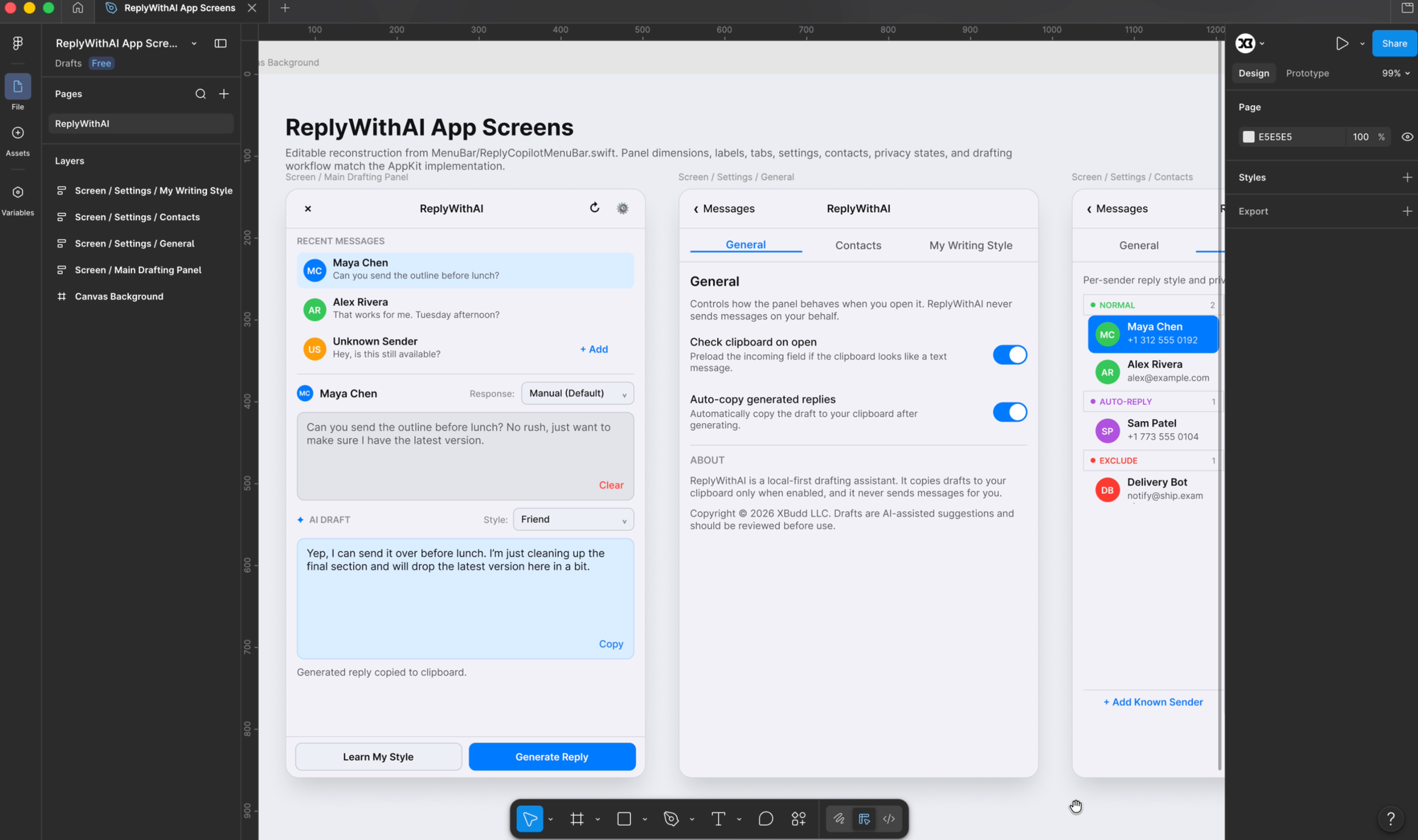
And because Codex was connected to the same file, I wasn’t working alone. I could continue prompting while making my own edits, almost like pair designing with an AI that understood the project.
That’s the workflow I’d been missing in so many ways.
Step 4: Iterate (bidirectionally)
Once the wireframes are in place, start experimenting in both Figma and Codex, watching as both update with your prompting.
Personally, I asked Codex to generate a dark mode. It created it perfectly in one-go.
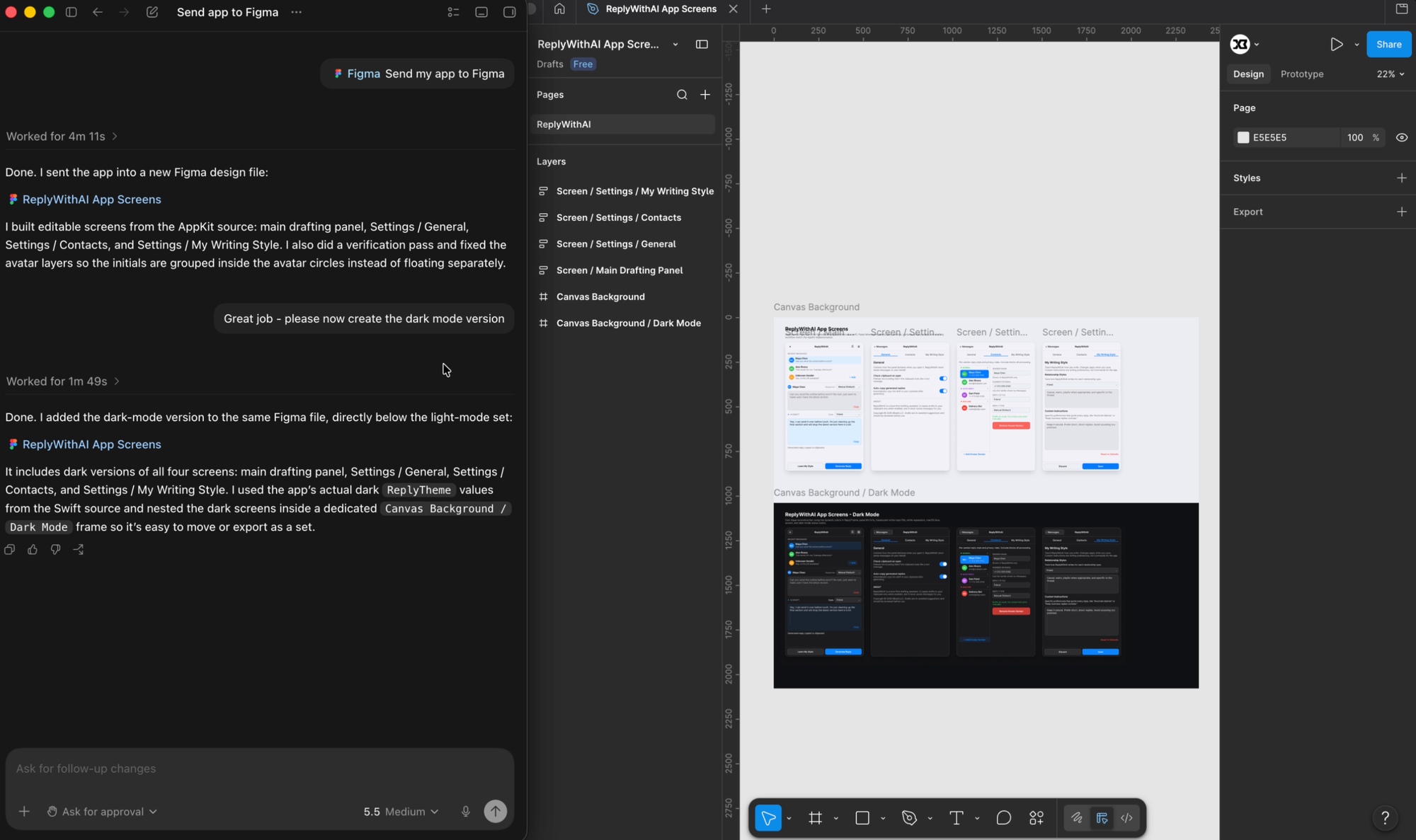
Finally I had it clean up parts of the interface that still felt a little, well, AI generated and moved on to a new project: designing a friend's media kit in - you guessed it - Figma via Codex.
There's something simple yet amazing about having a true collaborative partner and not just hoping for the best or prompt engineer to get the closer and closer to the design outcome you want.
Now you can just say it, see it, and design it - with the tools you know and love plus the power of prompting in AI.
That's the magic of Figma MCP with Codex and other AI Coders.
That's a wrap
If you’ve been building apps with Codex - or really any AI coding tool that supports Figma through plugins or MCPs - I’d highly recommend giving this a try.
Figma makes is super easy to connect into popular apps (Codex, Claude Code, Cursor, etc.) with just a few clicks and has MCP support for many other AI services.
All in all, Figma’s growing support for AI coding workflows is making this type of collaboration increasingly seamless, and I suspect it’s only going to get better from here. I just can't believe it took me this long to get on board.
Thanks for reading
If you've enjoyed this guide and want to stay updated on the latest in AI, be sure to subscribe to The Collation via the Sign Up below.
We're always sharing the signal - and not the noise - when it comes to innovation.
Thanks for reading and happy designing!