I Fixed My Largest Spotify Annoyance with One Simple Shortcut (And You Can Too)
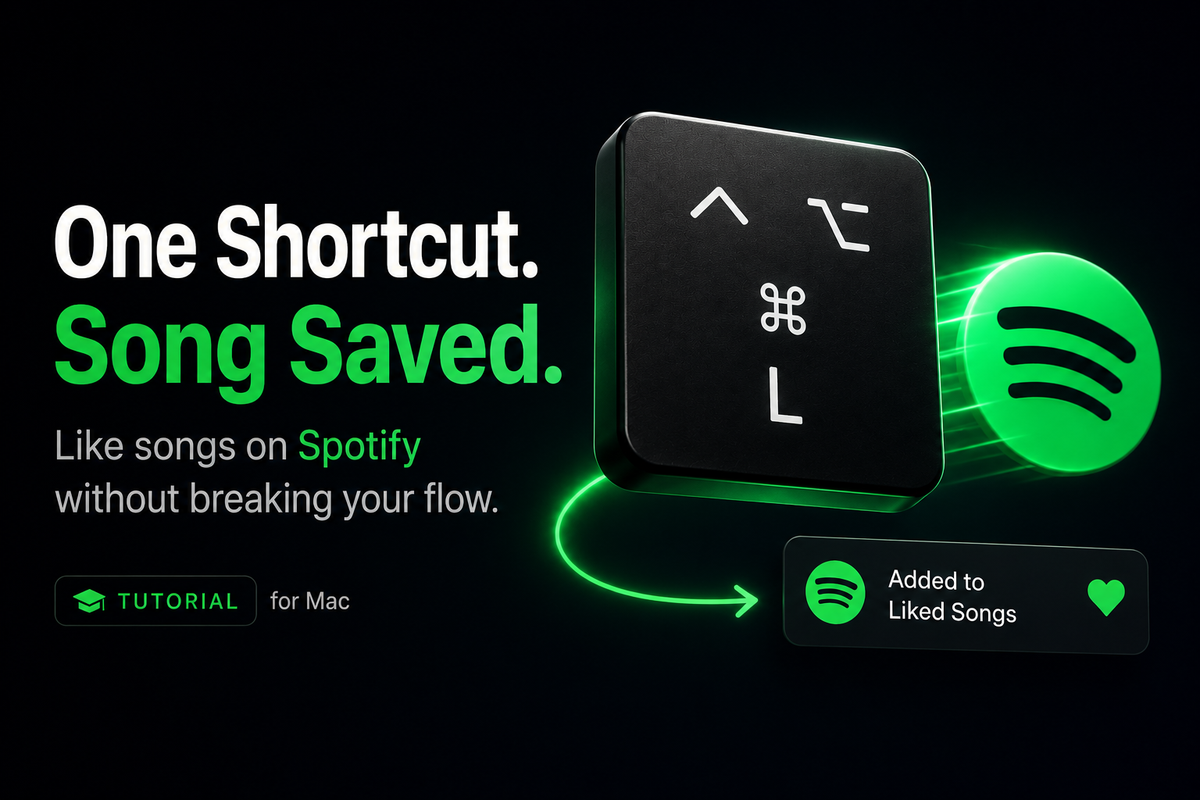
If you love music but you’re constantly breaking your focus to open Spotify and hit "Add to Liked Songs" on new tracks, there’s finally a better way. Here's how to build a keyboard shortcut that Adds to Liked Songs while Spotify remains in the background and your flow remains uninterrupted.

I love music. Moreover I love discovering new music. I have nearly 30k Liked Songs on Spotify and an embarrassingly high "Time Spent Listening" metric each year on Spotify Wrapped.
I "Like" (Add to Liked Songs) a ton of songs - but I really do not like having to break my flow to open Spotify and click "Add to Liked Songs" each time I want to do so.
So I fixed this once and for all.
Now it's as simple as pressing one key - even when Spotify is minimized.
I absolutely love it and, moreover, love that my flow no longer needs to be broken.
Let me show you how to do this too in just 15 minutes.
Wait… how?
Without getting too technical, Spotify opens up its backend via an API that lets you do and build some pretty great things.
So I used the API to build a tiny shortcut that basically says:
“Hey Spotify, what’s playing?
Cool. Add that to Liked Songs.”
That’s the whole workflow.
Runs locally on your Mac using Apple Shortcuts, a script, and your unique token from Spotify.
(Read: No subscriptions. No third party app. No monthly fee to automate clicking.)
Best of all, I've done the hard work for you so it takes around 15 minutes to set up.
Let's dive in.
Build Your Own (in just 15 minutes)
Quick note: You do not need to know how to code to do this. You do need to be comfortable copying and pasting some code into Terminal to get things rolling.
Before you start
You’ll need:
- A Mac
- Spotify (Premium account for API)
- Node.js installed (we’ll check this in a minute)
- ~15 minutes of your time
Our Goal:
Press one keyboard shortcut to add current Spotify song to Liked Songs.
Step 1: Make sure Node is installed
Node is just the thing that lets your Mac run the tiny script.
Open Terminal (press Command + Space and type Terminal).
Paste:
node -vIf you see something like:
v23.6.1Perfect. Move on.
If Terminal says command not found:
Install Node:
brew install nodeThen rerun:
node -vStep 2: Create your Spotify app
Go to Spotify for Developers and set up your account.
Click on Create an App then use the following:
App name:
Add to Liked ShortcutDescription:
Personal shortcut to like currently playing songsRedirect URI:
http://127.0.0.1:8888/callbackNow hit Save.
Spotify will give you a special Client ID. Keep this page open - you'll need it soon.
Step 3: Create the project folder
We're going to create a folder on your Mac to hold the scripts that will run for this shortcut.
The code below will create a new folder for you in your Documents called "Projects" and then within that it will create a sub-folder called "Spotify_Like" where we'll store our code.
Feel free to adjust the path to wherever makes the most sense for your set up.
Open Terminal.
Paste:
mkdir -p ~/Documents/Projects/Spotify_Like
cd ~/Documents/Projects/Spotify_Like
Now you have a folder for the shortcut's script. Take a second to open it in Finder - we'll be moving our project files in here in the next step.
Step 4: Download the project files
You don't need to write a single line of this yourself. You can grab my exact script configuration via the files below. (A perk for members of The Collation. Free to join if you haven't yet!)
Click:
CodeThen:
Download ZIPYour Mac will download a ZIP file - save it to a place you'll remember, such as Downloads.
Double click the ZIP file to extract it in place.
Move the extracted files into the folder we created earlier, which can be found at:
Documents/Projects/Spotify_LikeNow your Spotify_Like folder should contain the following files:
README.md
config.example.json
like-current-spotify-song.mjs
package.json
Step 5: Configure the shortcut
Duplicate:
config.example.jsonRename the copy:
config.jsonOpen:
config.jsonFind:
YOUR_CLIENT_IDReplace it with the Client ID from your Spotify App created in Step 2.
Save.
Close.
Step 6: Run it once
Open Spotify and start playing a song.
Open Terminal and paste this exactly (using the directory you used to save your files if different):
cd ~/Documents/Projects/Spotify_Like && npm install && npm startPress Enter.
Your browser should open with an authorization page from Spotify asking:
Allow access?
Press Allow.
Switch back to Terminal.
If everything worked, you should see something like the following with the name of the currently playing song and artist:
Opening Spotify login...

Liked: Reckoner - Radiohead
If you see that:
You’re done with the hard part!
You can close Terminal.
Step 7: Turn it into a keyboard shortcut
Open the Shortcuts app on your Mac.
Create a new shortcut and give it a name such as:
Like Spotify SongAdd the following action from the Actions panel:
Run Shell ScriptPaste:
cd ~/Documents/Projects/Spotify_Like && npm startAdd add the following action from the Actions panel:
Show notificationClick the right caret next in the Action to expand the options.
Uncheck Play Sound.
Open Shortcut Details (click the 'i'-in-circle button on right pane).
Assign a keyboard shortcut by clicking in the field next to 'Run with:' and then type the following keys together:
⌃ Control + ⌥ Option + ⌘ Command + ;In my testing, this is an unused keyboard shortcut that works even while using keyboard-oriented power apps like Photoshop
Make sure you see that in the field.
Save.
Step 8: Test the Shortcut
Play something in Spotify and - for grand effect - minimize Spotify.
Press your shortcut on your keyboard.
A notification should now appear.
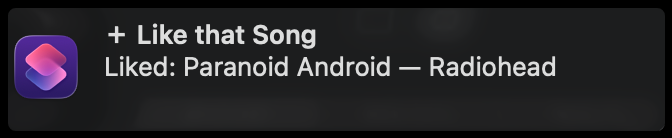
Switch back to Spotify and check...
The song should now be in your Liked Songs
Done.
Bonus: One-Key Magic
To really make it as easy as pausing or skipping a track (one key press), you can assign it to a special or function key on your keyboard by using a 3rd party app or accessory keyboard.
For instance, on my Logitech MX Keys S, I've set the Emoji key (F6) to activate the keyboard shortcut. Now I just press that one key and my shortcut runs.
You can also assign your Function (Fn) keys on your Mac using popular aftermarket apps.
Worth looking into if you want to further simplify your flow and making "Add to Liked Songs" truly as easy as one key press - all while Spotify remains in the background or minimized.
If something goes wrong
Browser never opens
Run Step 6 again.
Spotify says Redirect URI error
Make sure this matches exactly:
http://127.0.0.1:8888/callbackJSON error
Open:
config.jsonMake sure your Client ID is wrapped in quotation marks.
Correct:
"clientId": "your_id_here"Wrong:
"clientId": your_id_hereThat’s it
From now on:
- Hear a great song.
- Press the shortcut.
- Continue with your day.
Time well spent and well saved!
Why I like this more than I should
I've always been a fan of simplicity and reducing friction in experiences.
When you repeat an action often - especially one that's low-level or "administrative" in nature - it should always raise the question:
Is there an easier/better way?
And, if so, reimagine the flow from there.
Much of how I approach AI Transformation at an enterprise-wide scale can be reduced to exactly that same process:
Questioning the workflows we rely on today - especially where manual, repetitive, or otherwise flow-breaking and time-taking.
Then reimagining them with AI (or, in this case, a simple script).
Let Me Know Your Thoughts
How did you like this tutorial?
Are you enjoying your new Spotify Like Shortcut?
Run into any issues?
Or maybe you're left wondering what you and your teams are doing often that could be reimagined for the AI era?
Feel free to reach out at [email protected]. Here to help you think through the future of what's possible - for the AI era and beyond.
Thanks for reading and enjoy your new favorite shortcut!